Search Results
644 results found with an empty search
- Is Wix a Professional Platform?
Is Wix a professional platform? I've had some clients come to me and ask if Wix was a professional platform, as they've been told by other website designers, SEO/Marketing companies, or Advertising Agencies that Wix is not professional platform. This is simply not true. Professional businesses around the world use Wix for their websites, including large corporations, non-profit organizations, as well as small businesses and musicians and artists. Wix is a great platform for building beautiful websites, therefore professionals of all fields like having Wix websites including this architect. The reason that this is one of the best Wix Websites is that it looks great on all devices, including mobile, too. The mobile wix website is just as important as the desktop version – Wix makes it easy to optimize mobile layouts perfectly so the user experience is top-notch: Professional software companies use Wix as well; In fact, Wix is one of the best professional website platforms you can use for your business! A few reasons that makes Wix a great platform for your professional website include: Wix is Good at SEO: Wix is very good at SEO (search engine optimization), even Google says that Wix websites perform well in search engines. If optimized correctly, Wix websites do very well in search engine rankings. Wix Websites are Easy to Edit: Easy to edit websites means that they will actually be used and kept updated instead of getting stale. Wix makes editing your website easy, you just click on the area on the page to edit and make edits! No backends, no switching back and forth from the editor to the live website to see how it looks - Wix is the easiest what-you-see-is-what-you-get WYSIWYG website builder and platform. Wix Websites don’t get Hacked: Unlike Wordpress and other open-source platforms, Wix websites don't get routinely hacked. As a Wordpress designer, I've seen way more hacked Wordpress websites than I ever wanted to. Many times, clients come to me with hacked/broken Wordpress websites in hopes I can fix it, but typically we will recommend rebuilding the Wordpress site from scratch to clean all the files from any hacked code. More often, it's a better option to move to Wix, so they don't have to worry about their website getting re-hacked after being repaired. Wix is a hosted, secure website platform – and so far we have not had any clients have their Wix websites compromised in anyway in over 8 years, since we started working in Wix (knock on wood, doesn't mean it can't happen!) The wix hosting team takes care of the security and updates so you can focus on just keeping your website up-to-date with news, new products and other valuable information for your audience. Wix Websites don't need software/security updates: That's right, Wix handles all the software and security updates so you can relax and not worry about your website being insecure (such as due to a security patch update needed, a common ailment of Wordpress websites.) Wix Websites can be Professional and Beautiful, too! Check out some of the best Wix websites below to see how professional a Wix website can look and function. Wix can handle ecommerce, blogs, forums, social media feeds/engagement, and so much more. Is Wix Legit? Is it unprofessional to use Wix? Nope! Wix is one of the best platforms out there for ease of use, security, SEO, and functionality. While some DYI Wix websites can look unprofessional, that just means that they need a professional design touch! While you may be great at your business such as running a garden center, you may not be that great at website design. And that's ok, because Wix is a great platform that can be designed and launched by a professional Wix Designer, and then you can be trained on how to make ongoing edits easily yourself, no website design expertise required. We always tell businesses and entrepreneurs to spend more time building value for their business instead of getting bogged down and distracted on technology. Wix let's you spend less time upgrading & troubleshooting your website, and more time creating good content for your website to shine online! Check out some of the Wix Pros and Cons to see if Wix is the right fit for you, you can also reach out for a free estimate – we will recommend if Wix is the right platform for you. For most of our clients, Wix is the perfect platform, but sometimes clients have super custom or complex needs that are better suited on other platforms such as Shopify or Wordpress – we will evaluate your needs and let you know what the best platform is for your needs. Check out some of the best-looking Wix websites below to see how good they can look: Check out more of the Best Wix Websites » Looking for a Wix Website Designer? Reach out for a free estimate »
- Distillery Website Design
I'm proud to announce the launch of a new website design for Golden Moon Distillery. The website design includes video tours, a YouTube channel feed for master distiller, Stephen Gould's cocktail recipes, tour booking, store locator, and more. I love working with local businesses! Check it out: www.goldenmoondistillery.com This website was designed in Wix and is fully optimized for mobile viewing so that phone users can quickly find what they're looking for, watch video tours, and order their spirits online for pickup or delivery. View more of our Best Wix Websites » Are you looking to work with a reliable professional website designer? Reach out for a free estimate »
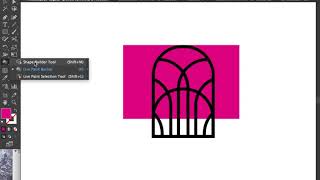
- Live Paint Bucket Tool Illustrator
Adobe Illustrator's Live Paint Bucket is a great tool for designing logos! As a Graphic Designer and Logo Designer, I wanted to share this great hidden tool in illustrator that allows you to "fill" in shapes in your vector artwork. This is great for designing logos so you can "fill" gaps in your shapes to colorize and play with them. I used to use this tool a lot back in the days of Adobe Flash, when creating shapes for animation. I'm glad they have it in Illustrator! It's an invaluable design tool. This hidden tool is found under the "Shape Builder Tool" that is on the left side of the Tool menu, the 9th one down (Shape builder looks like two circles with an arrow over them). See screenshot below or watch the video above. Here's another screenshot of where to find the tool if you have a one column toolbar:
- Wix Designer Tip: What to do when you can't select Wix Elements in Mobile Editor
Sometimes in the Mobile Wix Editor certain objects won't let you select them no matter how how you try – you double or triple click on the object and nothing happens, or when you try to control click (or right click on PC) to get the option to select it as an Overlapped Item but it doesn't show up in the list. See the video below to see what I mean. There's an easy way to select an object that is seemingly unselectable – just use Command-M on Mac (or Control-M on PC) to tab/pan through the page elements one-by-one until it selects the element desired: Need Wix Design Help? Do you need help optimizing your Wix website for mobile? Or do you need help with your overall website design? Reach out for a free estimate »
- Turn Photo into Illustration
As a Website Designer and Graphic Designer, I am always discovering cool new tools that make designing life fun! Here is a great tool I just discovered that can turn your photo into an illustration! This is a great online tool that quickly converts a photograph into an art illustration. No software purchase required, and it's completely free to check it out and test out as many of your own photos and play around with the illustration styles desired, but to download the file you'll have to register to signup for a free trial. They have a 7 day free trial so you can use all the features for free to test it out, then after that it normally costs $9.99/month for month-to-month or $4.99/month for the year. It's nice that they have a free trial, and the cost is not bad to create a lot of "original" art illustrations from photographs if it's something you plan to use often (beyond the free trial, you can also just pay for a month and cancel when done using it.) The great photo to painting converting tool is from Be Funky and can be found here: befunky.com/create/photo-to-art/ Here are some photo to illustration examples that I created using Be Funky with one of my client's photos from her garden blog plantpostings.com: The image above is the original photo from plantpostings.com, and below are several different photo-to-art filters from Be Funky: Below is a great examples of how Be Funky can turn pictures into paintings easily. This is the best photo art app I've found lately, as it's so easy to use, and works very quickly. No learning curve! Some of the photo to illustration filters look very much like stained glass. This Mosaic photo to illustration filter above is neat, it looks like stained glass! The above image has a very graphic quality, and looks almost like it converted the photo into an oil painting. If you want to turn a picture into a painting, the Be Funky app is a great tool. Below is an example of an Inkify filter creating a black and white "drawing" out of the photo. In this "illustration" above I scaled back the photo-to-art filter so more details showed through. I think I like this one best, it is using the Pastel DLX 1 filter, I love how it brings out the colors! Here's a fun one of a photo of Carolina Reaper hot peppers, using the Underpainting DLX Digital Art filter. This shows the watermark that shows up when testing out the free version when not logged in.
- Wix Designer Tip: Add Blog Posts to Page
A client came to me recently to ask how they could add blog posts to a page on their site, they had a page called "All Articles" but couldn't figure out how to show the blog posts on the page. We simply added a Blog element using the + tools > Blog > Post List (Large) and then customized it to show up to 50 blog posts. Here's how: Do you have Wix questions or are you looking for a Wix Designer? Reach out for a free estimate and consultation »
- But Wix is not responsive!
As a Wix Design Expert, one argument I hear often from die-hard Wordpress users is: “But Wix is not responsive!” This is simply not true. With the classic Wix Editor, you can use Strips and other full-width elements that flex with the screensize, from large monitors to small tablets. You have full control over how a website looks across all screens, super wide or super small. You can make it as responsive as you want it to be. Plus, in Wix, you can CUSTOM design each and every one of your mobile pages using Wix's famous Mobile Editor that allows you to reorder, resize, rearrange, hide, or add new elements such as images or buttons or text to fully customize the mobile view to enhance the customer experience on phones. With Wordpress or Shopify, you don't have much control over how the so-called "responsive" theme layout reflows for vertical mobile users. With Wix, you can control everything down to the last detail. You can ensure vital information and text is above the fold on phones. You can simplify and make pages like your homepage simpler and less scroll-ey (is that a term?!) You can move elements around, add or hide elements and make the mobile website the best it can possibly be. And all of this will not affect your desktop/tablet website version. Genius. View some of the Best Wix Mobile Sites > Wix IS responsive. Hands down. The essence of Wix is that it responds 100% to you. You can move any elements around to any spot on your webpage. You have 100% control over how your site looks on phones. You can overlap a circle over an image or text. You can do anything you want. Wix is to Wordpress as Photoshop is to Word. It is on another level. And, rather than battling the software, updates, plugins etc of Wordpress, Shopify, and other antiquated platforms, why not use Wix and have 100% of your time dedicated to full design control over your website. No more updates. No more theme "customizations." Just pure website design bliss. If you're NOT a designer, don't worry – I can help! Reach out for a free Wix Website Design estimate » I find that most of my clients don't like to DESIGN their websites, but, once designed, I offer training to every client so they feel confident to start editing and adding content to their own websites. And, if they really don't have the time or energy to update their websites, I also offer hourly rates for ongoing updates as desired. So if you're frustrated getting your website designed and launched, reach out and I can help!
- Best Ecommerce Wix Websites
Wix has a great platform for ecommerce websites. Wix has it's own ecommerce platform, Wix Stores, which is a very simple and easy to use ecommerce system that works well for many small shops. If needing more sophisticated ecommerce, Wix also integrates with Ecwid, a much more robust ecommerce platform that allows for a lot more customization like custom shipping options, product options, and customized checkout experience. Check out some of the Best Ecommerce Wix Websites we've worked on below: Check out more of the Best Wix Websites » Looking for a Wix Website Designer? Reach out for a free estimate »
- Wix Designer Tip: Simple Rollover Effect on image
Here is a simple rollover effect achieved with using Wix's Hover Box feature: To create this rollover effect, I have an medical illustration image on the bottom layer, then I create a Hoverboxes and put them over the image. In this case, I have just a circle that highlights this area of the image underneath it, and I created a Hoverbox with the Regular state having a clear circle shape with a white border to go over it. I have that circle increase by size by 106% so it's a subtle effect of getting slightly larger. Also in the Hover (rollover) state, I added text in a bubble to the right of the rollover area. This creates a simple but effect image "rollover" with a callout bubble and text. See the screenshots below to see the elements. Here's where you can add a rollover Hover Box under the + menu bar on the left hand side under Box > Hover Boxes. Don't worry too much if the design you pick to start isn't the exact thing you're looking for, you can edit any of them completely, but it's nice to start with one that is similar to what you're looking for in shape or general look and feel. This is the Hover Box I created: Note that rollover effects do not work on mobile. So, in the Wix mobile editor you can choose the elements from your Hover Box to show or hide, on the mobile view, and then resize and move to the location on the image as desired. For more control you may need to create an alternate vertical image or a series of images and elements for the image and rollover information to look best on mobile. In this case, we will create a vertical mobile version that shows all the icons and the text bubbles below the main image vertically. Remember, every project is different – we find solutions for each client's needs. Hire a Wix Designer If you're looking for help creating an animation for your website or with general website design, reach out for a free estimate.
- Wix: Add Mobile Menu
As a Wix Designer, sometimes I find that I want to add a custom mobile menu in Wix. Whether it's because I am using the page layout settings without a header and footer (which results in the lack of a mobile menu), or if it's because I want to create a more custom menu in the mobile, here is the way it can be done: Create a Lightbox "Menu" with Buttons for your Mobile Wix Website Wix has now made it possible to add elements ONLY to mobile, which means you can add a button that calls a lightbox which serves as a mobile menu. Watch how it's done in this video: You will need to create the Lightbox in the Wix desktop editor, and then make sure to change the Trigger Settings so that it does not popup on it's own. Then, you can add a custom button to your mobile layout and call the lightbox. This is a simple but effective way to create a menu. A few more Wix Notes: Custom Lightbox Mobile Menus are Static: If you create a custom mobile menu using a lightbox, this will NOT automatically update with new pages if you add them to your main menu. So if you do add pages over time, you may want to add buttons to them in your mobile Lightbox layout so mobile users can find those pages, too. Create a Mobile Menu on your Desktop Wix Website: You could also use this Lightbox menu technique to create a custom Wix mobile menu on desktop! Adding a button that calls a Lighbox menu is how to add hamburger menu in Wix on your desktop or mobile website. Wix Mobile Menu not Working or not visible? If you don't see a Wix mobile menu in your mobile layout, it may be caused by choosing the page layout settings without a header and footer (which results in the lack of a mobile menu). This is where you could create a Lightbox mobile menu using the technique above to solve the issue. Mobile Menu Icon in Wix If you create a custom button using one of Wix's icon buttons, you can swap out the icon with a custom "hamburger" menu icon so that it looks like a mobile menu. Wix Hamburger Menu Wondering how to add hamburger menu in Wix? Wix has a ton of free hamburger and mobile icons available in the editor that can be used in their custom icon buttons or you can simply add a hamburger image onto your page and link it. See the video above to see where the free hamburger icons can be found. Happy Wixing! Wix makes it possible to design professional websites that are easy to edit, excel at SEO, and look good across all devices. View some of the Best Wix Websites » Want help with your custom Wix Website Design? Reach out for a free estimate »
- Wix Websites: Hide elements on desktop, show on mobile
December 2022 Update: You no longer need Velo code to "hide" elements on the desktop or mobile site in Wix – now you can have different elements on desktop and mobile. Wix has made it possible to now add elements to the mobile layout only, so rather than the need to "hide" the elements that you want to show only on mobile on the desktop layout, you simply can add mobile elements to the mobile view only. That's right, you can now add mobile-only buttons, images, text and more only to your mobile website so you can streamline your pages for easy surfing on phones! So much better than having to get into Velo code. 😊 Also to note: You can also still hide desktop elements from mobile as well, so if you want to shorten or change a button's title or change out an image to work better in mobile, for example, you can simply hide the desktop version of the element and add a new mobile version as desired. Different Menu on Mobile: You could also create a different "Mobile Menu" out of buttons, which I've done, since the Wix menu options in mobile are still somewhat limited (the Mobile menu is basically on or off, based on if you have the page layout selected that includes the header/footer.) Read more about how to Add a Mobile Menu on Wix » Happy Wixing! Wix is a great platform for building custom websites that are easy to edit, excel at SEO, and look good across all devices. View some of the Best Wix Websites » Want help with your custom Wix Website Design? Reach out for a free estimate »
- Wix Freelancer
Work with a reliable Wix Freelancer! Looking for a Wix Freelancer? I am a full-time Website Designer based in Denver, Colorado – and I love designing custom Wix websites! View some of my Best Wix Websites » Here are a few examples of my recent work: I make sure all of the websites I design on Wix are also mobile-friendly for the best mobile experience. Wix has a great mobile layout editor that let's you control every aspect of your mobile website down to the last detail. I have a lot of clients come to me who want to use the Wix platform for their business website, but want some professional help to get all the pages designed, optimized for SEO (I'm a SEO Hero!), and get everything setup properly to launch the website. As a professional Wix freelancer, I bring years of Wix knowledge to the table, and I can recommend the best ways to make your website do all that it needs to do to help boost your business. If you're looking for blogs, SEO, ecommerce, or other functionality, I'm happy to give you a free estimate. Is Wix right for your business? I can talk with you and help you determine if Wix is going to have everything your business website needs. I don't always recommend Wix if there are sophisticated custom features needed, such as a sophisticated ecommerce shopping cart, but I do find that Wix is perfect for 80% of small businesses. It has blog functionality, great SEO settings, and is the easiest website editor in the world (in my opinion). After designing websites for over 14 years, there is no other platform that even rivals Wix in terms of ease-of-use. It's actually FUN to work on your website. Whereas Wordpress, Squarespace, and other platforms can be a programming battle, Wix is a breeze and all of my clients find that it is super easy to edit which means they don't have to call me everytime they want to make a simple change. If Wix isn't the best platform for your specific needs, I will recommend the best platform for you. I also design and develop websites in other platforms such as Shopify (great for ecommerce), Wordpress, PageCloud, as well as Squarespace (though I always recommend Wix over Squarespace – as Squarespace is still a more difficult platform to customize and edit). View my Wix Freelancer Portfolio » Contact me today at 720.260.3541 – I'm happy to discuss your website needs and give you a free estimate!
- Catalog Design Agency
Looking to work with a Catalog Design Agency for your next product catalog? We offer catalog design and expert print production so that your catalog looks perfect. Currently, we are working on the forth seed catalog for Sandia Seed, the Peppers of the World woman-owned seed company. I love working on this seed catalog design as I grow lots of their peppers and enjoy taking photos all summer long of the beautiful harvests to feature in the catalog. This 2023 Seed Catalog highlights one of my Big Jim chile photos with a backdrop of marigolds taken this September, as well as many other photos throughout plus recipes I helped create too using all of the delicious peppers. Here is a sneak peak at the 2023 Seed Catalog design's first few pages: If you're looking for an online catalog / ecommerce website, we work on those, too! Check out SandiaSeed.com, a Shopify website that we designed and maintain. Or check out this Wix Ecommerce website featuring a Wisconsin-grown mushroom products catalog: northwoodmushrooms.com View more of our Catalog Design Portfolio » Want help with your product or seed catalog design? Reach out for a free estimate for a catalog design »
- Honey Bee Comic
The bees at our community garden recently moved out, and it inspired me to draw up this comic. 😊 Happy gardening and beekeeping out there! View more of my garden illustrations »
- Wix Designer Tip: How to change a date on a blog post
As a Wix Designer, my clients sometimes ask me how they can edit their blog post's date or order. The Wix blog displays posts by date in the order they are posted, but it's easy to "change" the order of your blog posts by changing the date posted. To do this, click on your Blog in the Editor or in your Dashboard and go to Manage Posts. Then, click on Edit on the post desired Click on the left hand menu under Settings > Publish Date Change the date as desired. Click on Publish (to save)
- Wix vs. Wordpress
Hands down, I choose Wix over Wordpress for most of my client websites. I still work in Wordpress for some clients websites, but the clients dislike it, I dislike working on it and fixing it, and it's very time consuming and costly to maintain the software/plugin updates, and make edits to the design or functionality. Wix is easy to edit and maintain so all my clients love it. Wix has a great drag and drop WYSIWG editor (what you see is what you get) so it's super easy to customize the design of each and every page on your website. Unlike Worddress, where you have to login to the backend and edit pages in an editor, in Wix you can edit right on the page. You just click on a text box, and start editing it - and you can see how it fits and looks on the page as you're editing. You can even drag the text boxes or elements around on the page anywhere you want. In addition to being easy to edit, WIx websites excel at SEO (search engine optimization) if optimized correctly, and it is very easy to add functionality such as blogs, forums, social media feeds, add ecommerce for online shopping and so much more. Ecommerce: Wix does offer good ecommerce too, especially using their Ecwid integration, which has a lot more customizability than the Wix Stores ecommerce system. Here is a Wix store using Ecwid's ecommerce shopping system, we had to customize the pickup/shipping options to tie into their farmer's markets and CSAs, so Ecwid worked great: northwoodmushrooms.com Wix Stores also is a great simple ecommerce platform that is good for simple online stores, such as this website we designed for a Virginia Maple Syrup Farm: lakeridgemaplefarm.com Sometimes a different platform may be best, and I do work in other platforms. Shopify, for example, has a super sophisticated Ecommerce platform that can be customized and tied into many Point of Sale (POS) systems. Wordpress also has Woocommerce that I've worked in, but it's buggy and the software has to have constant updates, so it's a much more expensive and time consuming platform to maintain over time so I don't recommend it. Wix vs. Wordpress - Keeping websites Fresh With Wix, you can spend all your time actually adding content to your website. For example, you can add a new image to your homepage, add more text, add blog posts, add images to galleries, add news, etc. By continuing to add content and keep your website updated with fresh news, information and pictures, your website will do well in search engines and with your audience as it won't become stale. I find that many clients come to me with Wordpress websites that are often broken & have outdated software or plugins, or they are scared or can't figure out how to edit the site because they've "broken" it before. You shouldn't have to worry about breaking your site just to add some new text or images. Website edits or updates shouldn't be like pulling teeth! When we redesign their website on Wix and they get their first training, they are amazed at how easy it is to edit their new Wix website. And, with Wix's Site History and Undos, they don't have to worry about breaking it either, like they constantly do with Wordpress. Another huge bonus is that Wix is a hosted solution and Wix maintains the platform, so no software or security updates are needed for the website owner. Wix just makes website design simple. WYSIWG Platforms I hope that Wordpress, Shopify, Squarespace, Weebly and other platforms get inspired by Wix's amazing editor and start improving their own editors to be easy-to-use with drag-and-drop functionality. I think competition is healthy, and it's nice not to have all your eggs in one basket. I'm frankly surprised that Wordpress and other platforms haven't reworked their editors to be easy to use like Wix. I'm sure it's coming, but it sure is taking a long time! If you have experienced Wordpress woes, and want to laugh, check out Wix's Wordpress Ad Campaign that really highlights all the things that drive me crazy about Wordpress. They nailed it. So, in the meantime, I recommend Wix to 90% of my clients. Sure, it's not the perfect fit for 100% of clients, depending on the complexity and nature of their website needs. But it is the perfect platform for most small businesses and stores, artists, writers, and non-profits. Want to see how varied and good Wix websites can look? See some of the Best Wix Websites » Reach out today for a free Wix Website Design Estimate »
- How to Download Images from Wix Website
As a Wix Website Designer, I have run into this issue with finding images that are already used on a Wix website. Here's the work-around: Finding images already used on a Wix website can be hard, whether they be in a gallery, or an image box, hoverbox or strip backgrounds – if you don't know the filename, it can be very hard to scroll through long Image Library folders of content trying to visually find the image you're looking for in order to reuse it or edit it. Believe me, I've done this many times! For example, if I wanted to find an image that is already used as a background or strip image on a page, or reuse it elsewhere, it's hard to figure out what that file is named or find it in the Image library. (Which is why I always try to name my files with searchable names so I can find them easier in the future). HOW TO FIND + DOWNLOAD WIX IMAGES I've discovered a new work-around way to "find" these images for reusing, downloading and/or editing as desired. Open the Photo Studio for an image: Click on Image > Settings (gear icon) > Adjust (three volume dials icon) Open the Photo Studio If the image is in a strip background or hoverbox: Click on Change Background or Change Strip Background or Change Page Background > Click on the Photo Editor Icon (three volume dials icon) This will open the Photo Studio editor, see below, which will allow you to crop, resize, enhance, adjust, apply filters, or even cut out an image. You can also add overlays, text and backgrounds to images. This isn't Photoshop, but it does give you some basic tools that I find useful – and, more importantly, if you make any edits in this editor (such as resizing by just 1 pixel), you can "Save" the new version of the image, and it will now appear at the top of your Image Library for your Wix website. This is great, because you can then download the image, rename it (so you can find it more easily next time), edit it as desired, or reuse it elsewhere on your website. A couple of cool tools in the Photo Studio include the vignette (to give your photo a subtle vignette shadow or brightness around the edges), or the cut out tool works well as a rudimentary clipping out tool for objects. You can also rotate, flip, resize images at will. To find the Photo Studio tool in your Wix Blog: Click on Image Click on the Photo Studio Icon (looks like three volume dials) If you have a Gallery of images in your Wix Blog, this trick doesn't work, unfortunately, you can't get into the Photo Studio editor from image galleries in the Wix blog. So next time you're endlessly scrolling through a Wix website's Image Library trying to find an image already used on the site, try this quick Photo Studio tool instead and save a new version that you can actually locate and rename, download, edit and reuse the image as desired. Of course, I don't advocate littering your Image Library with duplicates, so only do this once for your image, and then make sure to rename the filename to make it easy to find it down the road! Filenames can include several words, so I like to name the images with words I can search to locate them. How do I download all media from Wix? Learn how to download multiple images (or delete multiple images) in the Wix media library in this post. Happy Wixing!
- Just another Wordpress Monday
Did you just sing that headline in your head? I did. 😉 Today I needed to install a Wordpress blog for a long-time client who insisted on Wordpress, and, boy, it took the whole afternoon just to do a clean installation on their hosting provider! I had to find out from the host about setting up the database, where to get the database username and password, open up the wp-config.php file to add the database name/user/password, then upload the files to the server, update the PHP running on the server because the newest Wordpress wouldn't work without it, plus deal with a security IP block because I accidentally tried to access the wp-config.php file in my browser... on and on. It took several hours of troubleshooting and waiting for hosting support to answer questions before I was able to get the basic installation setup. ARG. Just writing about it is frustratingly boring to me. It reminded me of all the reasons why I dislike Wordpress. Working in Wordpress is always SO time consuming and you often run into problems to troubleshoot – it's like pulling teeth to get a Wordpress site installed, designed and maintained. For some laughs and to see more about what I'm talking about, check out Wix's Ads about Wordpress » These are the main reasons why, for the past several years, I have been recommending most of my clients use the brilliant Wix website platform. Wix is perfect for 90% of my clients' needs. Most businesses need a beautiful, fast loading website that they can quickly edit as needed, and be easy to use by their customers. And Wix is a great solution for that. To start off, in Wix, you can just pick a website template (or a blank template) and start working immediately – no file downloads/uploads, coding, wp-config.php files or PHP updates required! To get a Wordpress site installed, just getting the software installed and setup on a hosting server can sometimes be a challenge, depending on the hosting provider. And that doesn't even include the time to customize a template or code custom templates! If you are using a good Wordpress hosting provider and you setup Wordpress sites everyday, sure, it's not too difficult to install (and some hosting providers like the solar-powered AISO or WPEngine will install the platform for you!) Regardless, it still DOES take a decent amount of time just to get started in comparison to setting up a Wix site. What I like about Wix, is that you can pick a template and start working immediately, no setup or hosting purchase required. Wix offers unlimited full-functioning free trials so you can start designing a site without paying for ANY hosting until you're ready to launch it at a domain*. That's a BIG DEAL. I love designing websites on Wix for clients as I can design the entire site from start to finish, with fully working pages, forms, etc, without purchasing hosting until we're ready to launch. I can even design right in Wix, by importing photos, SVG logo files and vector files, PNGs and whatever elements I need to design the site. I no longer design website concepts in Photoshop or Illustrator first, I just design the WORKING website right in Wix. It's a HUGE timesaver. The Wix editor also has a great mobile editor that allows you to customize your mobile website using the same elements from the homepage. View some of the Best Wix Mobile Websites to see how Wix can be customized to look great on phones. You can shuffle around elements such as text boxes or images, and resize or even hide or add mobile-only elements to a Wix website to make your mobile user experience as easy to use as possible. Unlike Wordpress and other platforms, you have 100% control over the mobile view, you can rearrange and add any elements desired to make your mobile website as user-friendly as it can possibly be. You can also simplify Wix mobile websites to help them load more quickly and help phone users find the info they need right way (such as hours, address, call to action, main services, current news, etc.) Another great advantage is that Wix concept websites can be navigated by the client for reviewing, where they can actually click around and navigate the menu of pages. They can provide feedback, and I can quickly edit designs, and even train clients on how to edit their new Wix website – all before hosting needs to be purchased. *With Wix, you can have an unlimited free website at one of Wix's subdomains, but, for professionals and businesses, it's best to purchase a hosting plan and tie it to a domain when you're ready to go live. Having your own domain is crucial for SEO (search engine optimization) to help your website get found online. One other note is that if you're designing an ecommerce website on Wix, you can setup your store and products, but keep in mind that you'll need to purchase one of their business hosting plans in order to test shopping cart checkout and accept payments. No more Software Updates A huge benefit of Wix is that once the website hosting is purchased and launched, there are no updates needed. You don't need to worry about installing security updates, plugin updates, making sure your hosting server's PHP is up-to-date, etc, etc. With Wix, you just pay for a hosted solution, and their tech team handles the software, programming and security updates – the only time you have to spend on your website is time actually adding content or updating your pages – no software version updates or coding EVER needed. It's wonderful. WYSIWYG Website Editor I love training clients on how to use their Wix website, they are always so surprised (especially if coming from Wordpress) at how easy it is to edit their page. What is great about Wix's main editor is it is a WYSIWYG editor (what you see is what you get). This means that you can view your pages and edit them directly, rather than having to go to a backend and edit text and widgets and publish to see what it looks like on the actual website. Editing Wix websites is very intuitive, especially with a short training on the basic tools in Wix. As I mentioned, I design websites directly in Wix now. I do use Photoshop and Illustrator to build images and graphics as needed, and then simply upload them to Wix to place where ever I want on the pages. You can overlap a circle badge, for example, over an image or strip, and you're not confined in anyway to templates or "blocks" of content. Designing websites in Wix is like designing in Photoshop, Illustrator or Indesign or even Powerpoint – whereas designing in Wordpress is like designing in Word (difficult at best). While I DO still work on Wordpress sites for some of my clients, as well as other platforms such as Shopify, I'm super happy to have most of my clients on Wix, as it's smooth sailing and they love their websites. I'm happy, my clients are happy, it's a win-win. Last note: I hope that someday another WYSIWG website platform will come out to compete with Wix. Right now, there really is no comparison. Weebly, Wordpress, Squarespace, Shopify, and most other platforms are still in block-mode when it comes to page design, where you often need to be a programmer just to get the website customized in a way that you want. You cannot just drag an element and place it exactly where you want on a page, even overlapping other elements. You have to design within a template, grid or block. Mobile websites are especially hard with responsive-templates of Wordpress or other above mentioned platforms, because they reflow to mobile size without much control over how they do so. You can't easily shrink a particular object, or simplify or rearrange the content to work better on phones – you are at the mercy of the responsive template. This makes many Wordpress and other platforms websites much less user-friendly for phone users - and often clients come to us for a redesign in Wix so that they can make their mobile website experience better. Regardless, I do hope that all of these platforms look at what Wix is doing and come out with some better WYSIWG drag-and-drop editors that work as well as Wix's does. I know they're working on it, and I often get contacted by hosting providers wanting me to test their new website builders – but none are anywhere close to what Wix is doing. Yet! So for now, I love designing websites in Wix – and my clients love them too! Easy to edit, easy to use, mobile-friendly and fully optimizable for SEO, Wix websites are wonderful to work on. And don't worry, Wix websites are fully customizable - you are never tied to a template. Each and every page on your Wix website can have it's own custom design layout – you're not forced to design in blocks or within standard page templates. To see the wide range of how a Wix websites can look, check out some of my Best Wix Websites » Looking to hire a Wix Designer? Reach out for a free estimate »
- Wix Social Share Image: How to change Facebook sharing image on Wix Websites
As a Wix Designer, many of my clients ask this question after I design their Wix websites: How do I change my Wix Social Share Image? The Social Share image in Wix is the image that Facebook and other social media sites will show when you share a URL to your website. Wix allows you to customize the social share image on each page of your Wix website, as well as your blog posts. Here's how: Here's a screenshot of where a page's Social Share image can be updated in Wix: Ideal size for Social Share images: The Facebook recommended image size for sharing images and sharing links with an image is 1,200 x 630 pixels. Whether you're sharing landscape, portrait, or square images, Facebook will resize it to 500 pixels wide and scale the height accordingly. Facebook Debugger: First be sure to Publish your website after making any social share image updates to make sure the new images on your site are live. After you publish your website with the new social share images added, Facebook MAY still show your older social share image when testing out posting a link, this is because Facebook stores/caches these images in it's system. To fix this, use Facebook's debug tool, which allows you to re-Scrape the image until it pulls the newest one. Sometimes this takes a few clicks on the "Scrape Again" button to get the newest image to load, so keep clicking on "Scrape Again" until it shows the new image. Here's the link to the Facebook debugger: developers.facebook.com/tools/debug/ Happy Wixing!
- How do I download all media from Wix?
As a Wix Designer, sometimes my clients ask how they can download images off of their Wix website for other purposes. If you've ever wanted to download multiple images or media from your Wix website, here's how it's done! You can also use this to delete multiple images or media files from your Wix media library. Here's a screenshot below to show How to download all media from Wix by selecting multiple media files and clicking on the right panel "three dots" to get the Download or Move to Trash functions: Happy Wixing! Need a Wix Designer or Wix Training? Reach out for a free estimate »
- Wix Responsive Images
Want to make an image responsive in Wix? As a Wix Designer, I get this question often so I thought I'd write a blog post to share. If you want an image to be full-width and responsively scale to each viewer's web browser, here's a good way to accomplish this: Here's how to add full width images in Wix that are responsive to different sized screens. You could use a full-width Strip image, but that doesn't give you as much control as a Pro Gallery. Simply add a Wix Pro Gallery, and set it so it stretches to full width, and then go into the Settings > Layout, Choose Grid, then click on "Customize Layout" and to choose choose the sizing settings to Fit (instead of crop), and one (1) image. You now have a full screen image that will flex to different sized screen! You can also set it so that it can be opened into full screen if desired, and also allow for downloads and social sharing. Or, you can have it un-clickable by choosing "Nothing Happens." Keep in mind that this Pro Gallery won't scale to extra-small browser windows on tablets and desktops, the way Wix works is that it sizes it down to a point, so it will shrink down to the width of the page inside the Wix gridlines is fixed at 980 pixels, so it won't flex smaller than that width except on a phone, which has a different layout. Here are some screenshots below on how I set up the full width image shown in the Wix tutorial video above.
- Importing Wordpress Posts to Wix Technical Issue - Too many categories
As a Wix Designer, I often work on transferring Wordpress websites to Wix as clients love the easy-to-use (and maintenance free) Wix platform. Today, I ran into a snag when trying to import a Worpdress blog posts into a new Wix website. I couldn't figure out how it worked, and Wix phone support was stumped, too. While troubleshooting, I realized when trying to import it using the XML file instead of using the URL import, that I had too many categories (over 100) in the original blog post. Once I removed the extra categories (there were 189 if you can believe it on the old Wordpress site!), and started a fresh import, it worked! I DID have to delete all the categories first in Wix as the import DID partially work by importing 100 categories to start, so deleting the categories and then trying the import again fixed the issue. I just wanted to put this here for future reference and for any of you who may be running into the same issue with moving and redesigning a Wordpress website on Wix. Do you have an old clunky Wordpress site that you'd like to move to Wix? You're not alone. Reach out to us for a free estimate »
- Wix Website Image cutoff on Tablets & Mobile
Question: Hoping you can help me with my issue on images on my Wix website. I have a screenshot JPG of an Excel sheet chart. I upload the JPG then fit it into the space I have designed for it. Now I'm working on my desktop pc with a 24in monitor, the img looks fine, publish > looking good. I then go to my ipad to check it out and the image is cropped off cause its too big, I then take a look on my iphone and same issue its too big. Is there a setting that Im missing in Wix so that the image adjusts proportionally to the device being used? Is there I certain size I should adjust the image to in the screenshot software that I use (SnagIt) before saving it as a jpg? Hope you can help. Thank you! Answer: You have a couple options to fix your image so that it is not cropped off on any devices. If you are just inserting an image on a page (not in a gallery), you must keep the image between the two dotted Gridlines on the left and right – see screenshot above – which are there to guide you to keep images within the live area of tablets or smaller browser windows. If you have images that go outside of these doted Gridlines, then that image may be cut off on smaller devices such as tablets. For mobile, make sure to use the Mobile Editor and make sure your image is also not getting cut off on the sides of the screen. Keep in mind that spreadsheets as an image is going to be quite small on mobile as they can only be about 320 pixels wide. For a flexing 100% image, you could put your image into a Pro Gallery instead, using the full width gallery with one image. See video below to learn how to set this up. Also be sure to check the mobile editor to make sure it’s sized right there. On mobile obviously it will be a lot smaller but you can keep it from cropping either by sizing the image in the mobile editor, or using a full width pro gallery.
- Adobe Illustrator: Hide Outside Artboard
Adobe Illustrator: How to Hide Elements Outside of Artboard: As an expert Graphic Designer, I sometimes come across something new that makes my designing life easier. Here's a feature from Illustrator that I can't believe I didn't discover sooner: The Trim View. The "Trim View" option is great if you're designing in Illustrator and you don't want to see objects or images outside of the live area of a document. Here's a quick video tutorial to show where this can be found: Note: If you are designing multiple page documents, I highly recommend using InDesign versus Illustrator. I find that a lot of young designers are using Illustrator these days to design multiple page documents such as double sided postcards, brochures, catalogs or brand guides. If you have more than one page in your design, use InDesign, it's MADE for that purpose. While Illustrator has the ability to have more than one artboard, I find this is very cumbersome to use and is not ideal for multiple page documents.
- Looking at bringing 2 websites into this century
I loved this email subject line from a potential solar company who wants to update their two websites! Made me laugh so I made it into a quote. 😊 By the way, these fun pixel speech bubbles were created using this fun free online tool: pixelspeechbubble.com
- Do you need to size down images for Wix Websites?
No, you don't need to shrink down your images for Wix websites - this will NOT help speed up your Wix website load time. As an expert Wix Designer and Wix SEO expert, I get this question a lot. One of the great things about Wix is that you DO NOT need to size down and optimize your images before uploading them to the website. In fact, Wix actually recommends uploading high-res images, as the Wix platform automatically compresses and resizes your images depending on the resolution needs of the viewer. So I don't need to optimizing images before uploading to my Wix website? That's right, you don't need to shrink down your images! In a recent "How to Optimize Your Site for Core Web Vitals" webinar, one myth that Wix's Dan Shappir wanted to dispel is regarding the need to optimize the images before you upload them onto Wix. You do not need to resize the images' width and height to be as small as possible! This will NOT speed up your site and can actually do more harm than good. In fact it's essentially the opposite – Wix automatically optimizes images and we do a really good job of it. Wix delivers the minimal amount of information to provide the best possible experience to your visitors. Wix automatically transforms images' format into Webp files ( .webp file extension is a file format developed by Google to reduce the size of images without having to sacrifice quality.) This format is supported by almost all browsers now, and Wix verifies that the browser actually supports it and if it does then Wix delivers the image using the .webp format instead which reduces images' overall download size by approximately twenty percent. You do not need to resize your images, as Wix servers automatically resize them and clip it exactly to the needed size of that particular session, resulting in the optimal usage of data, making your website as fast as it can be dynamically for each viewer. When uploading images to Wix, it is ok to use large images, but keep in mind that it is good to keep overall image file sizes under 8MB, which is way larger than any website image would need to be anyway! JPGs over 8MB are usually good for printing large banners but that type of resolution is not needed for websites. Speeding up your Wix Website Tips: If you want to speed up your website load time, rather than compressing the images you are using on your site, instead you could reduce the number of images, fonts, and text or element animations, avoid animated gifs, use SVG files for logos or other vector shapes, and only use PNG files when needed for transparency reasons. Also, be sure to make your website mobile friendly! In the Wix mobile editor, make sure to simplify the website, make sure there is some text to identify who you are above the fold, and hide unimportant images or elements to keep the mobile website as clean as possible for fastest loading times. Want to learn more about speeding up your Wix website? Read my recent post titled: Speed Up Wix Websites: Top Tips for Images + More Looking for a Wix Designer to help your website perform better and be more user-friendly? Reach out for a free estimate »
- Is Wix better than Wordpress?
Wordpress, while a great blogging platform, is riddled with problems – for one, it is an unsupported free CMS (Content Management System) that causes my clients a lot of grief due to hackers getting into the backend and adding malware to sites. Because it is an open-source platform, robots/hackers can easily find security flaws to get behind the scenes to add their malware and links. I have had several clients come to me with hacked Wordpress sites, and unfortunately I have to tell them it would be easier to start from scratch than to try to fix their hacked sites. Unfortunately, a lot of people get a Wordpress site up, and they don't stay on top of the updates and security patches that prevent it from getting hacked. I'm not saying Wordpress is all bad, as it is very customizable and, with thousands of dollars in development fees, it can be a great platform if it is kept updated and utilizes the latest security features, But if you're looking for a great platform that doesn't require constant updating by your developers, Wix is a wonderful alternative. Note: it is not wise to update your own Wordpress site unless you back up the files and database first, which is not easy for a non-website designer to do! Wix is a great platform, as it is a hosted platform and they have tech support. With a Wix website, you don't have to worry about asking your website designer/developer to upgrade your Wordpress software version every 6 months. Wix is auto updated with new features nearly every week, and you don't have to lift a finger. Plus, if you do have a problem, Wix does have tech support. While Wordpress has a massive forum for posting questions, it is very difficult and time consuming to go through all the forum responses to problems and determine which solutions (if any) will solve your Wordpress problem. One of the big arguments against Wix is that is a hosted platform, and you cannot move or set up Wix websites on other hosting providers, as you could with open source platforms such as Wordpress. There is also no easy way to export out a Wix website to other platforms, so once you're on Wix, it's a manual process to move it to a different platform. However, one could say the same of Wordpress, Shopify, and other platforms. Wordpress sites, while they have exportable data, are also difficult to move from one hosting provider to another unless you're a developer. Moving a Wordpress website almost always requires a developer to help export databases and setup themes and port over the data on the new server, and this can take several hours. It is also quite an undertaking to make major design changes to a Wordpress website, such as editing the headers or footers or the homepage layout, which often requires a developer if you want to do something different. The real question is, does anyone care if a website is exportable? Most small businesses don't want to switch website platforms regularly, it's only done out of necessity (like when you have a hacked Wordpress site and you're tired of fixing it repeatedly and battling it to make simple design edits.) To be honest, even if you have a Wordpress site, it's no small feat to redesign the pages and templates, in fact, in my experience, it takes much longer to redesign a Wordpress website than it takes to redesign a Wix website. With Wix, you don't have to waste valuable time recoding themes files and CSS styles, you can just work right on each page to update the design as desired. And, websites are not tied to Wix if you should ever change your mind. Like Wordpress and other platforms, you can still rebuild and move your website onto a new platform at any time. You may need to copy and paste the content and download/import over images from your old Wix website if desired, but it's not much different doing this from Wix as it is from Wordpress or other platforms. When you change platforms, it's always a time consuming process, and often you end up redesigning the website in the process anyway. And with Wix, why would you want to change platforms? They have the best WYSIWG website editor in the business – in my opinion, Wix provides a million dollar website editor for about the same cost for hosting as Wordpress hosting. It's a no-brainer for most website needs*. Wix is so easy to use, you can simply login to the editor, and then click on the items you want to edit and edit them right on the spot. In Wordpress, often times your content is buried in different places (like in Widgets) that are difficult to find and makes editing your website a chore. With Wix, it's as easy as cake, and I find that my clients actually ENJOY working on updating their websites in Wix. I can't say any client with a Wordpress website has enjoyed their relationship with the platform, the reason they come to me for a new website design is because they're tired of fighting Wordpress. One argument I hear often from Wordpress-worshippers is: “But Wix is not responsive!” Simply not true. With Wix, you can use Strips and other full-width elements that flex with the screensize. Plus, you can CUSTOM design each of your mobile pages using Wix's famous Mobile Editor that allows you to reorder, resize, rearrange, hide, or add new elements such as images or buttons or text to fully customize the mobile view to enhance the customer experience on phones. With Wordpress, you don't have much control over how the so-called "responsive" theme layout reflows for vertical mobile users. With Wix, you can control everything down to the last detail. You can move elements around, add or hide elements and make the mobile website the best it can possibly be. For more examples, view some of the Best Wix Websites we've recently designed. Bottom line, if you have a small business and you'd like to have a beautiful, mobile friendly, e-commerce capable website that is easy to edit, and doesn't require constant software or plugin updates, then choose Wix. Contact me if you'd like help getting your Wix website designed, setup and launched, I can even help train you on how easy it is to edit once it's complete! I also offer Consultations for general help with existing templates, so if you find a template you love, but just need some help getting it setup with your business information, colors, fonts and graphics, contact me and I can give you a free estimate. SEO for Wix: I also offer SEO (Search Engine Optimization) Consultation to help get your Wix website into the top of Google. Contact me to learn more and get a free estimate » * One last note: I do still work in Wordpress, Shopify and AISO's solar powered website builder for some of my client websites. Wix is a great fit for 95% of my clients, but sometimes complex ecommerce or other custom needs are better suited to using Shopify or possibly Wordpress, or sometimes businesses and non-profits love having solar-powered hosting so AISO is a great fit for their needs. I offer free consultations, and I can recommend the best platform based on your specific needs.
- Sizing Images in Wix – Consistency, Alignment and Cropping
As a Wix Designer, I design Wix websites for clients and then train them on how to edit their websites going forward, such as adding pages, images, etc. One of the common questions I get is how to resize and make images consistent. In this video I share my quick tips on sizing images in Wix to be the same size as other images, to align them to other objects/images, and how to reset the proportions of a resized image so that it is "reset" to be uncropped and shows the full image. One common question I get is: Do I need to resize my images for my website? Nope! That's right, unlike the old days of the internet, in Wix you DO NOT need to compress or resize your images for Wix websites - as this will NOT help speed up your Wix website load time. In fact, Wix actually recommends uploading high-res images, as the Wix platform automatically compresses and resizes your images depending on the resolution needs of the viewer. So uploading larger images is best (keeping them under 8MB is ideal, however, I don't recommend that you upload super-high resolution giant images, which are unnecessary for websites anyway!) I often have Wix website design clients ask me how to fix their images as once they dropped them onto their Wix page, here are my quick tips on how to quickly size your images, reset their proportions (to remove the cropping from an image), and how to align them using the Wix Toolbar so that they are aligned vertically or horizontally, and are consistently sized:
- Resizing Images for Wix Websites
As a professional Website Designer, I get this question from clients all the time: Do I need to resize my images for my website? No! Answer updated for 2022: You don't need to shrink down your images for Wix websites - this will NOT help speed up your Wix website load time. In fact, Wix actually recommends uploading high-res images, as the Wix platform automatically compresses and resizes your images depending on the resolution needs of the viewer. Read more about this in my latest blog post titled: Do you need to size down images for Wix Websites?
- Speed Up Wix Websites: Top Tips for Images + More
As an expert Wix Designer, I recently watched Wix's "How to Optimize Your Site for Core Web Vitals" from Dan Shappir, Performance Tech Lead at Wix, and I wanted to summarize some of the top tips of what I learned and post it here for future reference: Biggest Takeaways: No, you don't need to shrink down your images for Wix websites! Optimizing images on Wix – That's right, you don't need to shrink down your images! One myth that Dan Shappir wanted to address is about the need to optimize the images before you upload them onto Wix. You do not need to resize the images' width and height to be as small as possible. In fact it's essentially the opposite – Wix automatically optimizes images and we do a really good job of it. Wix delivers the minimal amount of information to provide the best possible experience to each of your visitors based on their viewing device. Wix automatically transforms images' format into Webp files (.webp file extension is a file format developed by Google to reduce the size of images without having to sacrifice quality.) This format is supported by almost all browsers now, and Wix verifies that the browser actually supports it and if it does then Wix delivers the image using the .webp format instead which reduces images' overall download size by approximately twenty percent.You do not need to resize your images, as Wix servers automatically resize them and clip it exactly to the needed size of that particular session, resulting in the optimal usage of data. When uploading images to Wix, it is ok to use large images, but keep in mind that it is good to keep image file sizes under 8MB (which is way larger than any website image would need to be anyway!) Animations: Watch out for excessive use of reveal animations, which can slow the site down (such as a header flying in from the right). Strip animation effects such as Parallax animations do not impact load time. But if you have animation of text to fly in from the the right, this will slow down the overall page load time as until the the movement of that text ends then effectively you could say that the page hasn't finished loading because the visitor can't actually read the content of that header text until the animation finishes. More General Top Tips to Improve your Wix website's Speed Performance: Text: Use it! Text tells the user what the site is about. Meaningful text content above the fold (before a visitor scrolls) is important to help with user experience and load time. Text loads faster than images, and it is important to tell your user who you are before the user has to scroll. Limit the number of fonts use on your Wix website: Keep it simple, the more fonts you have on a site, the more fonts have to be downloaded. So we recommend using just 1-3 fonts Don't upload duplicate fonts to the Wix editor, make sure you only have one version of the fonts used on the site. Ensure good contrast with text: If you have white text over a dark image, but the site has a white background, the text may load first which will not be legible until the image is loaded to provide the contrast. Avoid putting text IN images, text over-layed on top of the image is fine, but don't put the text in the image itself, such as with Photoshop or the Wix Image editor as this will mean that until the image is loaded, the text would not be loaded. It is also bad for SEO and accessibility as search engines and screen readers cannot read text that is in an image. Avoid large download files. Your images and files shouldn't be larger than 8MB. Use JPGs over PNGs where applicable, as using jpgs results in smaller download sizes for the same sized image, and have almost the same quality. PNGs really are only needed for transparency needs. Use SVG for shapes/logos: SVG files are actually better than JPG and PNGs so if you can use a SVG, it's smaller, sharper, and remains sharp when zoomed in on and is usually much smaller than any other image format. Generally avoid animated GIFs - tiny animated gifs like a small moving arrow are ok, but avoid larger animated GIFs. Use a looping video instead, which load more quickly. Set Image Strip background colors to match the background image's primary color, which helps ease the transition for viewers, and without this it can have a negative impact on performance measuring tools. Wix Mobile Speed Tips: Make sure your pages look good on mobile (in Wix use the mobile editor), as more and more people are using their phones to visit websites, so it is very important. You can use the Wix mobile editor to add or hide certain elements to simplify the mobile user-experience, making it easier for mobile viewers to navigate the website. Hide less important content, and magnify the more important content. You can also reduce the number of items in galleries, repeaters or feeds to help reduce the length of the mobile page. This was a great webinar and explained a lot of questions that I've had over the years with the Wix platform. So stop resizing your images, use text, and make sure your mobile website is optimized for your users and your WIx website will soar in speed. Happy Wixing!
- Ecommerce Wix Website Designer for Mushroom Farm
We recently completed a beautiful new Ecommerce website for a Wisconsin Wisconsin Farm, Northwood Mushrooms – their website was on Wordpress, so we migrated them to Wix to make it easier for them to keep updated and also have a robust ecommerce online store. The redesign included a blog, recipes page, an Ecwid based online store for handling their complex farmer's market ordering and shipping needs, as well as SEO. Check out their new ecommerce Wix website design below. This Wix website will allow their customers to pre-order mushrooms for pickup at the farm and farmer's markets in Wisconsin. I wish I lived closer, I want to try their fresh mushrooms! Luckily, they shipped me some dried mushrooms that I can use in some recipes! They will also be using the online store to sell dried mushrooms to the national market.
- Is Wix the Best Website Builder?
Yes, as an expert Website Designer, I believe that Wix is currently the best website builder out there for most of my clients. Due to it's ease of use and design flexibility, mobile-friendliness, and SEO features, I recommend it to most of my clients now in 2022. I do work in other platforms such as Shopify and Wordpress. I find that Shopify is a good option for complex ecommerce stores, and Wordpress can also do more sophisticated membership-accessible features and areas if needed. But for most businesses' informational websites, Wix is the perfect website builder! In Wix we can build beautiful custom websites that are unique, engaging, mobile-friendly and can be easily found on search engines. Best of all, they're easy to edit! Want to see Wix Website Builder Examples? View some of the Best Wix Websites » Here are some common questions when someone is coming to Wix from another platform: 1. Is Wix easy to use? We have different staff members who will need to edit it, so it needs to be easy. Yes, Wix is quite easy to edit, I also make a tutorial videos on how to easily add or edit blog posts, add content to the homepage and subpages, add images to slideshows/etc. There is also a phone app that allows people to add edit and add blog posts from phones, which can come in handy. Another great feature is that Wix has UNDOs, and Wix even has a backup "Site History" feature that is super easy to use and allows you to restore any previously saved version of the site. This comes in handy if someone is in the editor and accidentally deletes a whole page or section or makes another blunder and you want to quickly go back to the previously published version. So you never have to worry about "breaking" your site – you can always go back in time! I LOVE this feature of Wix. 2. Is the risk of hacking more of an issue on Wix compared to Wordpress or Blogger? My experience with Wix is that no websites on it have never been hacked that I’ve heard of (unlike Wordpress and other open-source platforms that tend to get hacked a lot!) One of the great benefits of using Wix is it is a hosted solution, and Wix has a strong emphasis on security. Wix has a closed hosting system that they are constantly monitoring for security so it’s not easily hacked as open-source platforms like Wordpress. The only real way Wix could get "hacked” is if the password was weak or given out… but I have not had any problems with this. This is not to say that down the road Wix websites or servers cannot be hacked (anything can be hacked!), but currently this has not yet been a problem for any of my hundreds of client websites on the Wix platform. 3. We've heard you can't migrate content off Wix, so once you're there, you're there unless you start over. Is that right? Can we save our content off of Wix? Website platforms are never really compatible with each other even if content does get 'exported’. While you cannot export/migrate content automatically off of Wix to another platform, this is similar when switching from other platforms (even though you could export the blog posts out of Wordpress, for example, you still have to manually build any pages and reformat any exported content over if moving to a different platform). So, the fact that there isn't a magic button to change platforms, this is the same for all platforms, there is always work involved with moving to a different website builder. If down the road we want to migrate a Wix website to another platform it’s just a matter of rebuilding the content on the new platform. This is not that different if you were moving off of other platforms. Typically, when you’re ready to migrate to a different/new platform, you’re ready to rebuild and redesign the website anyway and take advantage of new features/apps/etc. Also, since website builder platforms are never really compatible with each other – even if the content can get ‘exported’, websites usually always have to be rebuilt if changing platforms. That said, on Wix, you still own your content, and, it is possible to download images and copy over content from Wix onto other platforms if desired. View the Best Wix Websites » Looking for help with getting a new Wix Website Designed? Reach out for a free Wix Web Design cost estimate »
- Wix Designer Tips: Find Hidden Elements on Mobile
Struggling with the mobile editor of Wix? Here are a few tips to find hidden elements on mobile as well as rearranging content in the Wix Mobile Editor: You can change the arrangement of layers, move elements around, find hidden elements and more in the Wix Mobile Editor. Looking for inspiration? View some of the Best Wix Websites including the Best Wix Websites on Mobile » Looking for a Wix Designer? Reach out for a free estimate »
- Why do people like Wix? Eight Reasons to love Wix
Why do people like Wix? As an expert Web Designer, I recommend the Wix Website platform to most of our clients as it's an amazing platform. Here are my top 8 reasons why I love Wix: Wix has the world's easiest and most flexible website editor. Lots of other platforms say that they have a Wix-like interface, but none have the drag and drop functionality that Wix has. On that note, I hope that other platforms finally step up to the plate and create a what you see is what you get (WYSIWYG) platform like Wix! Wix is to Adobe Indesign as Microsoft Word is to Wordpress. You can literally move and place objects anywhere you want on Wix, even overlapping elements! I have not found another platform that does anything similar. Yet. The fact that you can build an entire website on Wix for free is awesome. In fact that is why I originally got hooked on Wix, I was able to test it out and build an entire client website on it without having to spend a penny. Of course, if you want to have the site at your own domain name, or if you want to collect online payments, you do need to purchase hosting, but the hosting is relatively inexpensive and similar in cost to other hosting services so it's a great value. If you forget or can't pay for the Wix hosting, your site is never lost, the entire website will continue to live forever on a temporary Wix subdomain. (For example: https://nameofyoursite.wixsite.com/nameofyoursite) You can even use Wix's free plan forever, it's only if you want your own domain or special functionality such as taking online payments that you need to pay for hosting. I have several artists and bands that use Wix's forever free plan, which is great if you have no budget at all. The downside is that there is some minor Wix branding on your site and you don't have your own custom domain, but hey, it's free! Wix has a great SEO features*, and performs very well in search engines such as google. I find that new Wix websites rise in the rankings very quickly if SEO is done right. *Note: if you are using the free Wix plan, it's harder to rank without your own domain name, so if SEO is important, it's good to purchase any of Wix's hosting plans so that you can have your website at your own domain and submit it to Google Search Console and Bing, plus setup Google Analytics. Unlike other platforms, Wix makes it easy to change your design without coding or developers. With the easy editor, you can swap out pictures, add galleries or video to any part of any page, change header or footer designs, change overall colors and fonts, pretty much anything you want to do with your design – all without code. You are never regulated to a template in Wix. Every single page is fully customizable. Wix is a dream platform for designers! No updates needed to the software or plugins: As Wix is a hosted solution, they have a team of developers updating and improving the platform all the time. Unlike in Wordpress and other platforms, you don't have to worry about "security updates" or updating your plugins, or conflicting plugins. It just works! No maintenance needed. And, what makes that great is that you can then focus all your time and energy into adding new content to your website and keeping the information updated and fresh, rather than spending all your time updating the platform to keep it up-to-date and secure. Uber-flexible Mobile Editor: The fact that Wix has its own mobile editor makes it way easier to control the mobile experience over a typical responsive template that you find on other platforms. You can hide elements, resize elements and text, add special mobile-only elements such as buttons, and also reorganize every element to streamline the mobile view. We love designing Wix websites for our clients, and with our training they love how easy it is to edit and their new Wix websites! View some of our Best Wix Websites » Are you looking for an expert Wix Designer to help you with getting your Wix website designed and up and running? Reach out to us for a free estimate »
- Best Wix Website Examples
Here are some of our top Wix Website Examples of websites we've designed recently. Looking for an Expert Wix Designer? Contact us for a free estimate » Above is a new Wix Website Example for a Gardening Magazine, Colorado Gardener. Their website includes lots of great articles about gardening, plus a calendar, garden resources, ad placements, and a Q&A section. Below are some Wix Websites Examples for video game developers, environmental consultants, staffing companies, and more. We design custom websites for each and every client. We don't use templates – though we have customized templates if the client has one that they really like. Usually, however, we completely customize the template to work better for their needs. While we are also available for updates, we also train our clients so they can edit their own websites going forward. We also offer SEO Website Optimization and Consulting to help your website get found online, which is ever more important in this age of the internet! Wix websites can accomplish any design desired, we can include slideshows, parallax scrolling effects, videos, podcasts, blogs, galleries, and so much more on any page on your website. This allows for rich, fun websites that are pleasing to the eye and are also easy to use and find. Below is a Wix Website Example for a non-profit that helps people find work: We design websites for lots of small businesses, including Solar Companies, Compost Companies, Seed Companies, Doctor offices, restaurants, lawyers, and other small businesses. Contact us today for a free estimate » Below is a ecommerce Wix Website Example for an organically-grown maple syrup company in Vermont: View more of our Wix Website Examples » We love designing custom Wix Websites for all of our clients. While we do work on various platforms, we find that the easy-to-use Wix Website Design platform is a client favorite. You don't have to worry about templates with Wix, as the WYSIWYG editor allows you to custom design each and every page on your site. No template or coding limitations! View more of our Best Wix Websites » Looking for an easy-to-work-with Website Designer to design a custom Wix Website for your business? Or do you need any Graphic Design and Logo Design? Contact us today for a free estimate »
- Wix SEO Designer - Get found on Search Engines
I am always surprised by how well Wix does with SEO! I was pleased to see that my picklewix.com website jumped up to the third place on Google today in the states. Nice! It's usually fluctuating around 6-7th placement on page 1, but today it got a bump for some reason. I've been posting a lot recently so that may have helped. I'll take it! Looking for help with your Wix SEO? Reach out for a free estimate.
- Best Wix Mobile Sites
As a Wix Web Designer, a big part of the website design is optimizing the Wix mobile site design to look great on phones. The Wix editor is great in that it allows you to customize the mobile view of every page so you have full control over the placement, order, colors, font sizes and more in your mobile website. Part of our Wix Web Design fees include professional optimization of the mobile layout so all your viewers on phones can navigate and use your website easily. Check out some of our Best Wix Mobile Sites below, and make sure to view more of our Best Wix Websites which all have great-looking mobile sites! Colorado Gardener is a gardening magazine, we are recreating all their archived articles into a searchable website. This new mobile Wix site allows readers to read all the great stories and gardening tips on their phones in addition to picking up the free new print issues at gardening shops. www.coloradogardener.com This website above is another one of our favorite Wix Mobile Sites as it features beautiful photography and information on how we can all help pollinators and people by eliminating pesticide use and planting native plants. The People and Pollinators Action Network’s staff and leaders bring deep knowledge of and experience with pollinator protection, community development, environmental policy, sustainable agriculture, and habitat management. This website helps them spread the word and gain pledges: peopleandpollinators.org This is another one of the Best Wix Mobile Sites built for an Inn. The mobile view is gorgeous as well for checking out all the activities to do at the inn including birding and hiking. We also helped them with their SEO so they could be found! pagosariverwalkinn.com Another beautiful website we've designed was for AndersonsLaCostaNursery.com, a wonderful garden center in California, the Wix mobile website design is shown above. The mobile website for Blake Street Tavern was designed with ease-of-use in mind for phone browsers so their customers can quickly find the hours, directions and menu for their Denver sports bar. View more of our Best Wix Websites and their Mobile layouts in our Wix Website Design Portfolio »
- Bottle Mockup Creator
I just rediscovered smartmockups.com because they not only do book covers and t-shirts, they also provide quick, free mockups for bottles, supplement bottles, wine bottles... soda cans, smartphones, mugs, laptops, art frames, billboards, you name it. smartmockups.com/mockups is a user-friendly tool that quickly creates mockups of pretty much anything you can think of. I love it's simplicity, ease of use and quick customizability (like changing a bottle to black, for example). Here are some screenshots of their mockups available: They have wine bottle mockups, too: To see this in action, here's an example of a supplement bottle mockup for one of my clients. I simply uploaded my JPG file of the label art, and then I could size it as desired on the bottle, and was even able to change the mockup of the bottle to be a black bottle with a black cap. Pretty impressive and so easy to use! Beats using Photoshop to create mockups! These are great for use in online stores if you can't get a good shot of your product to clip it out on a white background. Original art, above
- Wix Design
As a Wix Designer, I know that Wix Design has an incredible range – no two Wix websites have to look alike! With Wix, there are no rigid templates – every page can have it's own unique design and layout. When I design with Wix, the sky is the limit when it comes to your page design. As a Graphic Designer, I love drag and drop design programs. And, like Adobe Photoshop, Illustrator, or InDesign, the Wix Editor offers very flexible drag-and-drop website design software that lets you add any design elements desired anywhere desired on each and every webpage. Unlike other templated platforms such as Wordpress, Squarespace, Shopify and so many others, the Wix platform allows you to drag and drop any element onto any position on the page... you are not regulated to columns or "blocks" of elements to put on each page, you can literally drop a logo over a photo and have it hang off the edge, or move a text block catty-corner to a photo box... it's like designing in InDesign! You have full control over the placement of every element on the page. And, you can drop in transparent PNG files, work with vector SVG files, drop in photos, shapes, anything you can design you can use in Wix. Another bonus is that Wix has a separate Mobile Editor that allows you to reorder and rearrange any desktop website elements into a vertical phone format so that you have full control over the mobile user experience as well. Unlike "responsive" templates of the other platforms listed above that reflow everything without much control, Wix allows you to really customize the mobile experience on your website so that everything is ordered and prioritized to be as easy to use as possible for visitors using their phone. Here are some recent Wix Design projects to see the range of how Wix websites can look. You are not stuck in a box, or even a template – each and every page is easily editable and fully customizable. Want to see more great examples of Wix Design? View more of the Best Wix Websites »
- Madison Garden Bloggers Fling
I'm excited to be attending the Madison Garden Bloggers Fling this year! We'll be exploring beautiful gardens with fellow garden writers and bloggers – it should be a wonderful time! Here's the one-page schedule I designed for the fling – tons of gardens packed into a long weekend!
- Wix Designer Portfolio
Looking for an expert Wix Designer? Check out my Wix Designer Portfolio to see all of the recent Wix Websites I've designed. Some of the websites are shown below, or checkout this page for more details. I love designing Wix websites and training clients so that they can edit their own websites over time. Wix is a great platform that is easy to use so my client websites don't get stagnate over time. I will design the website from start to finish, then I offer Wix Training on Zoom with a screenshare to walk you through how easy it is to change content on your website, add pages, blog posts, photos and more. Everyone loves their new Wix websites! Here are some examples from my Wix Designer Portfolio below: View more of my Wix Designer Portfolio to see all of the recent Wix Websites I've worked on for clients. I specialize in small businesses and non-profits!
- Book Mockup Creator
As a Graphic Designer and Website Designer, I work with a lot of authors on their websites and book design. Most of the time they don't have mockups for their books that show the 3d version of the book, so I create mockups for them so it looks like a book standing. I usually do this with Photoshop but I recently found this free mockup creator that generates medium resolution book mockups from an image uploaded, you can even upload spines! Very quick and easy to use. You can pay for higher resolution downloads as well, but the free ones work great for websites. smartmockups.com/mockups/square-books is a user-friendly only tool that quickly creates mockups of books and lots of other items. I love it!
- Best Professional Wix Websites
Is Wix good for professional websites? Yes! You'd be surprised by the number of large businesses, non-profits, best-selling authors, musicians, artists, photographers, accountants, lawyers, and so many more businesses have their websites on Wix. Why do professional companies choose Wix? Because it's easy to use, they're team can easily update the website and keep it current. Because Wix doesn't have to be babysat like some other platforms like Wordpress – you don't need to constantly "upgrade" the software or plugins, it just works. And what streamlined professional business doesn't want to be more efficient? Successful Wix websites do well in both SEO (search engine optimization) and usability. When Wix websites are designed right, they excel in search rankings and get found. Here are some of the professional websites we've built for our clients to show you some examples of professional Wix websites:
- Best Websites Created With Wix
Wix is an amazingly customizable platform for building websites in 2022 and beyond! Every website can have a completely custom Wix template designed for it so no two look alike. You are not stuck with a "template" as every page can be custom designed to be unique – no rigidness here! The added bonus is that Wix websites are also easy to edit, so that over time you can easily swap out homepage images or videos, add pages, change page designs, add slideshows, videos & galleries, and so much more. Here are some of the best websites created with Wix: We custom design every Wix Website so each one is unique. Then, we train our clients on how they can keep their websites updated and fresh with new content. We also offer Wix SEO Training so that you can make sure you're website performs well in search engines. Want to see a collection of the most beautiful Wix websites? View more of our Best Wix Websites » Contact us for a Free Wix Website Design Estimate »
- Roofing Website Design
Here is an example of a recent Roofing Website Design for a Roofer in Colorado: We designed and built out their website complete with their Serivces, pages, Claims Process, FAQs, and a blog to help them with their SEO. We trained their staff on how to easily edit this Wix website using the Wix Website Editor. The website is also fully optimized for mobile as well so people can check them out on their phones. Now they can add more photos and info on recent work to their pages, slideshows and blog posts. Check out the full Roofer Website at: www.northpeakroofing.com As a Wix Designer, we often get asked if we have to pick a template to work with. No! Wix, while it has templates, is completely customizable for each and every client. Did you know that Wix Website Designs can be fully customized for every need? View some of the Best Wix Websites that we've recently worked on for inspiration! Need a reliable expert website designer? Reach out to us for a free estimate »
- Remove Facebook Reviews
I had a website design client who is not on Facebook much, and just recently found out she had a negative review on Facebook that she was unaware of. Since she doesn't use Facebook, she wanted to remove the Reviews entirely off of Facebook so she doesn't need to monitor them. We kept her Facebook page to continue to help her get found online as it does have a link to her website, however, but were able to remove the Reviews tab so no one could submit a review of her business on Facebook unknown to her. I found some old tutorials on how to do this, but Facebook must have moved the settings. So here are the current directions for 2022: To remove Reviews on Facebook: Login and navigate to your Facebook Business page Click on the "More" icon under your main business page title which will expand, and click on "Edit tabs" In the Settings window, click on "Templates and Tabs" Scroll down to see the Reviews tab, and toggle it to off (turns grey when off) That's it! Note: Turning the Reviews Tab off will remove Reviews entirely from your Facebook business page, both positive and negative reviews, and no one will be able to review you on Facebook as long as it's turned off. If you do not wish do to this, leave the Reviews tab on.
- Best Wix Website Examples: Native Plant Website
One of my favorite Wix websites I've designed is the informative nutsfornatives.com blog, which provides lots of resources, photos and tips for planting native plants in Maryland, Virginia and surrounding areas. Shari's photos are beautiful and there is also a great page for finding nurseries that sell native plants in the region. This is one of the Best Wix Websites – it's packed with resources and information, and also has a great mobile layout for easy surfing on phones. Check it out! www.nutsfornatives.com
- Wix in 2022
As an expert Website Designer, I still vote for Wix as my top website platform of 2022! I continue to put client after client on Wix, due to it's easy to use editor, and my clients all love their Wix websites! Wix is still the best platform out there in 2022, I'm still surprised that nobody has released a WYSIWYG editor like Wix's yet – it's long overdue! Wix continues to be the best easy-to-use Website editor and platform in 2022. My clients all LOVE their new websites developed on the Wix platform. With training, it's easy for them to keep their sites updated with new content, products and services. With the Wix platform, they are no longer afraid to edit their websites! Wix is the hands down best Website Editor in 2022. For some ideas on how great Wix websites can look, check out some of the Best Wix Websites: Looking for help with your website design? I will recommend the best platform for your needs, that's often Wix, but sometimes other platforms such as Shopify may be better suited depending on the needs. Reach out for a free web design estimate »
- Photoshop Content Aware Crop Tool
Here is how to use Photoshop to expand images' area by using the Content Aware Crop tool. This is very handy if you want to straighten an image, or enlarge an image area for bleeds in graphic design. While Photoshop has had the Content Aware fill tool forever, I didn't realize that the Crop tool had this Content Aware ability. Make sure to "uncheck" the "Use Classic Mode" setting in the Crop Tool to allow for the Content Aware checkbox to work. If you have the Crop Tool in Classic Mode, it won't allow you to use this Content Aware feature: Looking for a Graphic Designer or Website Designer? Reach out for a free estimate »
- ADA Website Compliance
As a Wix Website Designer, I work with clients to make their websites more accessible. There are many ways to ensure your website is ADA compliant, whether on Wix or any other platform such as Wordpress, Shopify, Squarespace, etc. Here are my top tips for making sure your website has ADA Compliance: Design for all Devices Make sure the website works well across all devices (computers, tablets, phones) Good Navigation and Usability Make sure your website is easy to navigate. Have clear, large-enough-to-read menus, include your contact information in the upper right, use boxes/buttons or slides to link users to the most common pages. Allow users to change Size and Color of fonts Tools like UserWay's free widget allow users to adjust spacing, size, color and fonts on websites for easier reading. Use Contrast Use high contrast in your designs with text – black text on white backgrounds is most legible, avoid putting text over images unless there is plenty of contrast. Using tools like UserWay's free widget will allow users to increase contrast if desired. Identify Images with Alt Text and Titles Make sure your images have good filenames, titles/alt text to tell users and search engines what is in the image. This tip also helps with SEO, so if you have optimized your website for SEO, this image text should already be in place. Use Captioning in Videos If you're using video, make sure you can incorporate captions, or, even better, write about and add the dialogue and text from the videos below the videos so that users can choose to read or watch the video, or both. Last Tip: Use a ADA Compliance website tool such as UserWay's free widget that allows you to quickly add a ADA toolbar that expands to allow users to select what they need to better view the site. Options include adjusting Contrast, Highlighting Links, Bigger Text, Text Spacing, Pause Animations, Dyslexia Friendly, Enlarge Cursor, Tooltips, Line Height, and Text Align. Here is where you can Get the Free Widget (or paid upgrade) from UserWay: userway.org/compare I just started using UserWay's free widget for my websites and client websites, there is also a paid version that allows for more in-depth WCAG compliance options. I will update this post as I have more experience and feedback on the widget, I am not paid to endorse UserWay, I just have found that their widget makes it easy to step up the ADA compliance on websites and it works very nicely on Wix websites. Installing UserWay on Wix: See the video below on how to set up your free UserWay widget and install it on Wix. Note: Her Wix directions above say to find the Custom Code under Settings in the Wix Editor, but the Tracking & Analytics menu option is no longer available in my Wix Editor Settings dropdown, Wix must have moved it. So, I was able to find the Custom Code in my main Wix Website Dashboard under Settings > scroll down to Advanced to find Custom Code. Accessibility Statement: Another good ADA tool I've found is this Accessibility Statement Generator to quickly create a statement to add to your website: www.w3.org/WAI/planning/statements/ Of course, ADA compliance is a complicated ongoing process - and these are just general tips above. Read on below for more detailed information: What is ADA? The Americans with Disabilities Act (ADA) requires certain businesses to make accommodations for people with disabilities. Web content should be accessible to blind users, deaf users and those who must navigate by voice, screen readers or other assistive technologies. Website Accessibility Checklist Source: ada.gov/pcatoolkit/chap5chklist.htm (Note: This is the list from Sept 27, 2021, be sure to check the above website for more up-to-date versions of this checklist over time.) PURPOSE OF THIS CHECKLIST: This checklist is designed for use in conducting a preliminary assessment of the accessibility of your agency’s website. The goal is to review your website and your agency’s website policies and procedures and see if there are red flags alerting you to ADA accessibility concerns. MATERIALS AND INFORMATION NEEDED: To assess the accessibility of your website you will need: If already created, a copy of your Website Accessibility Policy. Information describing specific actions taken to make your existing website accessible to people with disabilities. Information about website accessibility training taken by staff and/or contractors responsible for developing and posting webpages and content. Information about any procedures used to obtain input from people with disabilities regarding the accessibility of your website. Any input provided by people with disabilities about their experiences accessing your website. The assistance of your website manager. Assessing Current Webpages and Content on Your Website This section will help you determine if your website has some of the most common accessibility problems. It will not identify all website accessibility problems. 1. Does the top of each page with navigation links have a “skip navigation” link? (This feature directs screen readers to bypass the row of navigation links and start at the webpage content, thus enabling people who use screen readers to avoid having to listen to all the links each time they move to a new page.) Yes No 2. Do all links have a text description that can be read by a screen reader (not just a graphic or “click here”)? Yes No 3. Do all of the photographs, maps, graphics and other images on the website currently have HTML tags (such as an “alt” tag or a long description tag) with text equivalents of the material being visually conveyed? Yes No 4. Are all of the documents posted on your website available in HTML or another text-based format (for example, rich text format (RTF) or word processing format), even if you are also providing them in another format, such as Portable Document Format (PDF)? Yes No 5. If your website has online forms, do HTML tags describe all of the controls (including all text fields, check boxes, drop-down lists, and buttons) that people can use in order to complete and submit the forms? Yes No N/A 6. If your website has online forms, does the default setting in drop-down lists describe the information being requested instead of displaying a response option (e.g., “your age” instead of “18 - 21”)? Yes No N/A 7. If a webpage has data charts or tables, is HTML used to associate all data cells with column and row identifiers? Yes No N/A 8. Do all video files on your website have audio descriptions of what is being displayed to provide access to visually conveyed information for people who are blind or have low vision? Yes No N/A 9. Do all video files on your website have written captions of spoken communication synchronized with the action to provide access to people who are deaf or hard of hearing? Yes No N/A 10. Do all audio files on your website have written captions of spoken communication synchronized with the action to provide access to people who are deaf or hard of hearing? Yes No N/A 11. Have all webpages been designed so they can be viewed using visitors’ web browser and operating system settings for color and font? Yes No Website Accessibility Policy and Procedures This section will help you identify potential problems with the ongoing process of ensuring website accessibility 12. Do you have a written policy on website accessibility? Yes No 13. Is the website accessibility policy posted on your website in a place where it can be easily located? Yes No N/A 14. Have procedures been developed to ensure that content is not added to your website until it has been made accessible? Yes No 15. Does the website manager check the HTML of all new webpages to confirm accessibility before the pages are posted? Yes No 16. When documents are added to your website in PDF format, are text-based versions of the documents (e.g., HTML, RTF, or word processing format) added at the same time as the PDF versions? Yes No N/A 17. Have in-house staff and contractors received information about the website accessibility policy and procedures to ensure website accessibility? Yes No N/A 18. Have in-house and contractor staff received appropriate training on how to ensure the accessibility of your website? Yes No 19. Have in-house and contractor staff who create web content or post it on your website received copies of the Department of Justice’s technical assistance document “Accessibility of State and Local Government Websites to People with Disabilities”? Yes No 20. If your website contains inaccessible content, is a specific written plan including timeframes in place now to make all of your existing web content accessible? Yes No N/A - website is completely accessible 21. Have you posted on your website a plan to improve website accessibility and invited suggestions for improvements? Yes No 22. Does your website home page include easily locatable information, including a telephone number and email address, for use in reporting website accessibility problems and requesting accessible services and information? Yes No 23. Do you have procedures in place to assure a quick response to website visitors with disabilities who are having difficulty accessing information or services available via the website? Yes No 24. Have you asked disability groups representing people with a wide variety of disabilities to provide feedback on the accessibility of your website? (Note: Feedback from people who use a variety of assistive technologies is helpful in ensuring website accessibility.) Yes No 25. Have you tested your website using one of the products available on the Internet to test website accessibility? (Note: Products available for testing website accessibility include no-cost and low-cost options. These products may not identify all accessibility issues and may flag issues that are not accessibility problems. However, they are, nonetheless, a helpful tool in improving website accessibility.) Yes No 26. Are alternative ways of accessing web-based information, programs, activities, and services available for people with disabilities who cannot use computers? Yes No ACTIONS: If the answer to any of the above questions is “No,” there may be accessibility problems with your website. Here are some steps to take to ensure that your website – and the programs and services offered on it – are accessible to people with disabilities. Establish a policy that your webpages will be accessible and create a process for implementation. Check the HTML of all new webpages. Make sure that accessible elements are used, including “alt” tags, long descriptions, and captions, as needed. Ensure that your webpages are designed in a manner that allows them to be displayed using a visitor’s own settings for color and fonts. If images are used, including photos, graphics, scanned images, or image maps, make sure to include text equivalents for them, using “alt” tags and/or long descriptions for each. Ensure that the text equivalents convey the meaningful information presented visually by the image. If you use online forms and tables, make those elements accessible. Ensure that videos appearing on your website include appropriately synchronized audio description and captions. When posting new documents on the website, always provide them in HTML or another text-based format (even if you are also providing them in another format, such as PDF). If documents are provided in both formats, provide both formats at the same time so people with disabilities have the same degree of access as others. Develop a plan for making your existing web content accessible, including specific steps and timeframes. Describe your plan on an accessible webpage that can be easily located from your home page. Encourage input on accessibility improvements, including which pages should be given high priority for change. Let citizens know about the standards or guidelines that are being used to provide accessibility. Make accessibility modifications to the more popular webpages on your website a priority. Ensure that in-house staff and contractors responsible for webpages and webpage content development are properly trained on your web accessibility policy and procedures. Provide a way for visitors to request accessible information or services and provide feedback about accessibility problems by posting a telephone number and email address on your home page. Establish procedures to assure a quick response to people with disabilities who use this contact information to access web-based information or services. Periodically enlist people with a variety of disabilities to test your webpages for accessibility and ease of use; use this information to increase your website accessibility. Consider using one of the no-cost or low-cost resources available on the Internet to test the accessibility of your website. (Please note, however, that these products may not identify all accessibility problems on your website.) Ensure that alternative means are available for people with disabilities who are unable to use computers to access information, programs, and services that are normally provided on your website. You can find more in-depth documentation here: www.ada.gov One last note... With all these ADA compliance requirements, I fear that we're making our sites less accessible! Popups asking for cookie permission or ADA tools often overlap and interfere with the user experience – make sure that any of the elements you add are still USER FRIENDLY. It's important that a Privacy Policy popup doesn't overlap a button or form making it hard for the user to submit or view the content. Keep it as simple as possible. Don't go the way of the newspaper websites, which have popups and ads bombarding the users from the second they arrive. I even find that the sites slow my computer down, it seems that the video ads and popups that are continuously loading drag my computer's performance down, and often resulting in stuttering or slow loading pages. I hope that some newspaper / media websites will raise the bar and make their websites more user-friendly. As most of them are now, I can barely stand to read the article I came for, even if I'm interested! Which leads me to my last note: keep your website simple, easy to use, and be gentle with popups if you use them at all. Make a website that is peaceful and easy to use, and you will be rewarded with more viewers that don't bounce off your website.